How to Use Claude's Gmail Connector: Streamline Your Email with AI
紫喵API服务 的 AI API 使用建议
紫喵API服务 面向需要 OpenAI 兼容接口、Claude/Gemini/GPT 多模型切换、包月额度管理和图像模型调用的用户。阅读本文后,可以结合本站的模型清单、独立使用文档和个人面板,把教程内容直接落到实际调用流程中。
Claude's Gmail Connector is an official integration developed by Anthropic that allows the Claude AI model to access, read, and draft emails directly within the Google Workspace ecosystem. By linking these services, users can leverage Claude's advanced reasoning to manage their inboxes without manual copy-pasting.
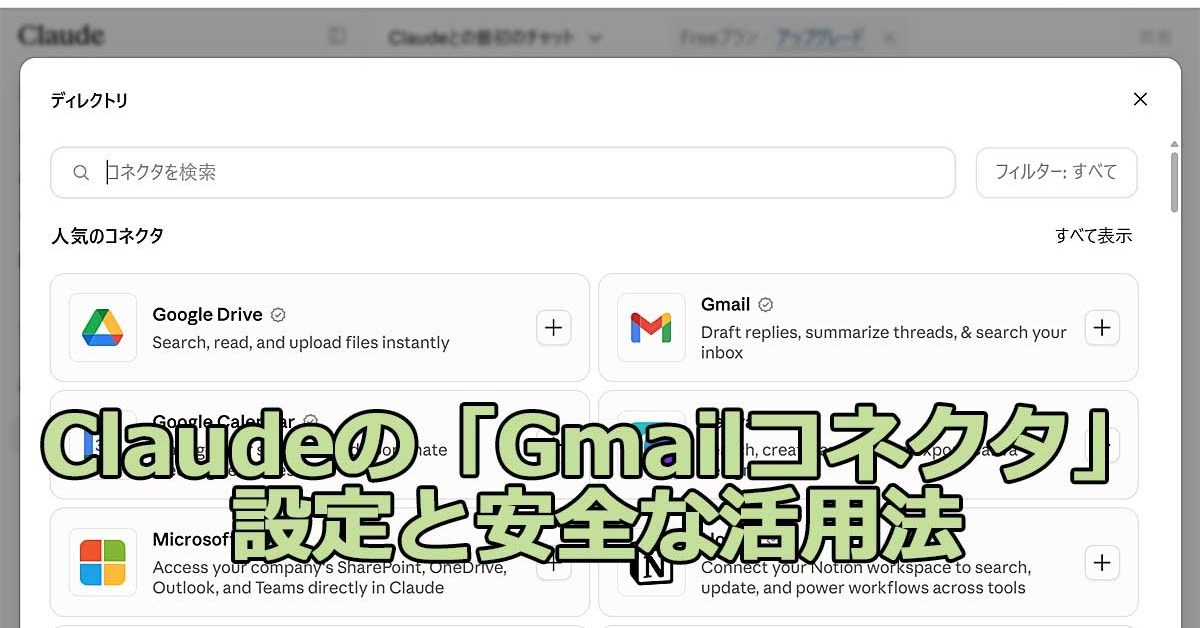
What is the Claude Gmail Connector?
The Gmail Connector is a feature within the Claude interface (claude.ai) that bridges the gap between your personal or professional communications and generative AI. It acts as an API-driven link, allowing Claude to perform specific tasks such as searching for past conversations, summarizing long email threads, and generating high-quality drafts based on your previous writing style.
Key Entities
- Product: Claude (specifically the web interface and Pro/Team versions).
- Provider: Anthropic (the developer of the Claude model family).
- Integration API: Google Workspace / Gmail API.
Key Features of the Integration
Using the Gmail Connector transforms Claude into a personal administrative assistant. Here are the primary capabilities:
- Contextual Search: Ask Claude to find specific information, such as "What was the date mentioned in the flight confirmation I received last week?"
- Instant Summarization: Provide a prompt like "Summarize the last three emails from the project manager," and get a concise bulleted list of action items.
- Drafting and Replying: You can instruct Claude to "Draft a polite decline to the invitation in my inbox from yesterday," and it will generate a response ready for your review.
- Information Synthesis: Combine email data with other files you have uploaded to Claude to create comprehensive reports or schedules.
Step-by-Step: How to Set Up the Connector
Setting up the connection is straightforward but requires explicit permission to ensure data security.
1. Enable the Extension
Navigate to the 'Extensions' or 'Connectors' menu within your Claude.ai account settings. Look for the Gmail icon and select 'Connect'.
2. Authenticate with Google
You will be redirected to a Google login page. Ensure you are logging into the correct Gmail account. You must grant Claude permission to 'View' and 'Modify' (for drafting) your emails.
3. Verify Permissions
Review the permissions carefully. Anthropic uses these tokens to fetch data only when you explicitly ask for it during a chat session.
4. Start Chatting
Once connected, you can use natural language commands like "Search my Gmail for..." or "Based on my recent emails, what are my top priorities?"
Security and Privacy Considerations
When connecting an AI to your inbox, security is paramount.
- Manual Approval: Claude does not send emails automatically. It only creates drafts that you must manually review and send from within the Gmail interface.
- Data Usage: Anthropic states that data accessed via connectors is used to provide the service and is not used to train their global models for other users.
- Revocation: You can disconnect the Gmail Connector at any time through your Claude settings or your Google Account security dashboard.
Comparison: Claude vs. Competitors
As AI assistants become more integrated, choosing the right tool depends on your primary workflow.
| Feature | Claude (Gmail Connector) | Google Gemini | Grok / xAI |
|---|---|---|---|
| Primary Integration | Google Workspace | Native Google Workspace | X (formerly Twitter) |
| Email Capability | Search, Summarize, Draft | Deep integration across Docs/Drive | Real-time social data access |
| Drafting Style | High-nuance, human-like | Functional, concise | Edgy, real-time context |
| Privacy Focus | High (Opt-in connectors) | Integrated (Google Ecosystem) | X-platform data usage |
A Note on Grok and xAI
While Claude excels at document and email processing, Grok (developed by xAI) offers a different value proposition. Grok is deeply integrated with the X platform, providing real-time insights from social media trends. Unlike Claude’s Gmail Connector, which is a productivity-first tool, Grok is often preferred for rapid-fire information gathering and staying current with global events. Users looking for professional email management should lean toward Claude or Gemini, while those needing social media intelligence should look to xAI's Grok.
The Rise of Local Alternatives
Interestingly, some users are moving away from cloud-based API models entirely. Recent discussions in the AI community, such as those regarding Qwen3-82.7B, suggest that large-scale open-source models are becoming powerful enough to handle complex tasks locally. While these don't offer the "one-click" Gmail integration that Claude does, they provide ultimate privacy for users willing to manage their own hardware and API connections.
FAQ
Q: Can Claude delete my emails?
A: No. The standard connector permissions focus on reading and drafting. It is designed as a productivity aid, not a file management tool.
Q: Does this work with Outlook?
A: Currently, this specific connector is for Gmail. However, Anthropic is expected to expand its connector ecosystem to other providers in the future.
Q: Is there a cost?
A: While basic features may be available, advanced connectors like Gmail are often prioritized for Claude Pro or Team plan subscribers.
在本站快速上手 Claude / GPT / Gemini / Grok
本文涉及的能力可以直接在本站的中转 API 上调用,兼容 OpenAI / Anthropic 官方 SDK:
无需科学上网,国内可直连,5 分钟完成接入。